

概要
2026 年 10 月 15 日、Black Forest Labs から画像生成 AI モデル「FLUX 3 Image Klein」が公開されました。
FLUX 3 Image Klein は、テキストからの画像生成(Text-to-Image)に加え、既存画像の編集(Image-to-Image)や、複数の参照画像を組み合わせた画像生成にも対応しています。
また、Bounding Box を利用して、画像内の特定の領域を指定した編集ができることも特徴です。
今回は、FLUX 3 Image Klein を使用し、NVIDIA GeForce RTX 5060 Ti 16GB を搭載した自作 PC 上で画像生成と画像編集を試してみました。
Base モデル、蒸留モデル、NVFP4 量子化モデルでの生成時間の比較に加え、Bounding Box を使用した画像編集も確認します。
▼ 過去記事
FLUX 3 Image Klein とは
FLUX 3 Image Klein は、ドイツの Black Forest Labs が開発した、約 56 億(5.6B)パラメーターの画像生成 AI モデルです。
モデルの重みが公開されており、ComfyUI などを利用してローカル環境で実行できます。
テキストからの画像生成だけでなく、既存画像を参照した編集や、最大 10 枚の参照画像を使用した画像生成にも対応しています。
また、Bounding Box によって画像内の要素の配置や編集対象の領域を指定できます。
モデルの種類
FLUX 3 Image Klein には、蒸留モデルと Base モデルが用意されています。
一般的な画像生成や画像編集であれば、少ないステップ数で処理できる蒸留モデルが適しています。
一方、LoRA の作成や Fine-tuning を行いたい場合は、Base モデルが選択肢となります。
また、それぞれのモデルには BF16、INT8、NVFP4 などの形式が用意されており、GPU の性能や VRAM 容量に応じて選択できます。
Prompt Upsampler
FLUX 3 Image Klein には、Prompt Upsampler と呼ばれる仕組みが用意されています。
Prompt Upsampler は、入力された短いプロンプトを、画像生成に適した詳細な説明文へ変換するものです。
FLUX 3 Image Klein は、詳細なシーン説明文を使用することを前提として設計されており、公式ドキュメントでも Prompt Upsampler の併用が強く推奨されています。
ComfyUI の公式ワークフローにも Prompt Upsampler が組み込まれており、入力したプロンプトを詳細化してから画像を生成する構成になっています。
ライセンス
FLUX 3 Image Klein のモデルは、FLUX Kommunity License v1.0 で公開されています。
商用利用については、関連会社を含む年間総収益が 500 万米ドル未満であるなど、所定の条件を満たす利用者(Qualifying Users)に対して、商用目的の出力画像の生成を認める例外が設けられています。
ただし、これはモデル自体の商用再配布や商用 Fine-tuning などを包括的に許可するものではありません。
また、モデル本体と Prompt Upsampler などの構成要素では、適用されるライセンスが異なります。
商用利用を検討する場合は、利用条件や禁止用途を含め、ライセンス原文を確認してください。
https://huggingface.co/black-forest-labs/flux-3-image-klein-comfy/blob/main/LICENSE.md
https://bfl.ai/licensing
公式サイト
FLUX 3 Image Klein
https://bfl.ai/models/flux-3-image-klein
FLUX 3 Image Klein blog
https://bfl.ai/blog/flux-3-image-klein
Hugging Face
https://huggingface.co/collections/black-forest-labs/flux-3-image-klein
ComfyUI 公式ドキュメント
https://docs.comfy.org/tutorials/flux/flux-3-klein
ローカル実行環境の用意
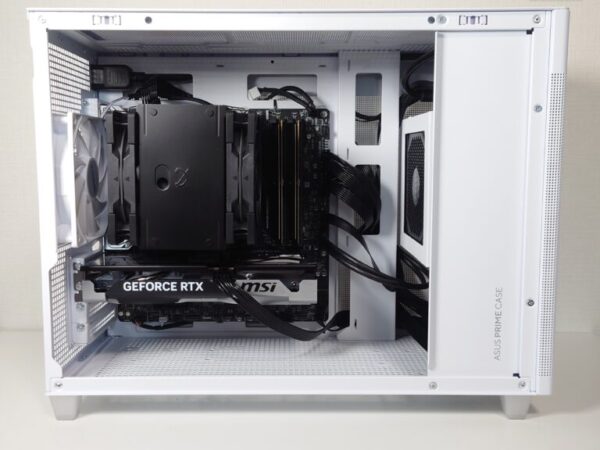
PC 環境
NVIDIA GeForce RTX 5060 Ti 16GB を搭載した自作 PC で行います。
Stability Matrix + ComfyUI の実行環境の用意
ComfyUI は、以前 Stability Matrix で用意したものを使います。準備方法については、過去記事をご参照ください。
古いバージョンだと正常に動作しない可能性があるため、事前に更新しておきます。
- Stability Matrix – Settings – アップデート
- Stability Matrix – パッケージ – ComfyUI の更新
以下では、
Stability Matrix 2.16.5
ComfyUI v0.42.1
で試しています。
必要なモデルファイルのダウンロード
ComfyUI v0.42.1 では FLUX 3 Image Klein に対応しており、公式テンプレートを利用できます。
必要なモデルファイルは、ComfyUI の Web UI 経由でもダウンロードできますが、Hugging Face へのログインとライセンスへの同意が必要です。
今回は INT8 モデルに加えて NVFP4 モデルも試すため、Hugging Face から直接ダウンロードします。
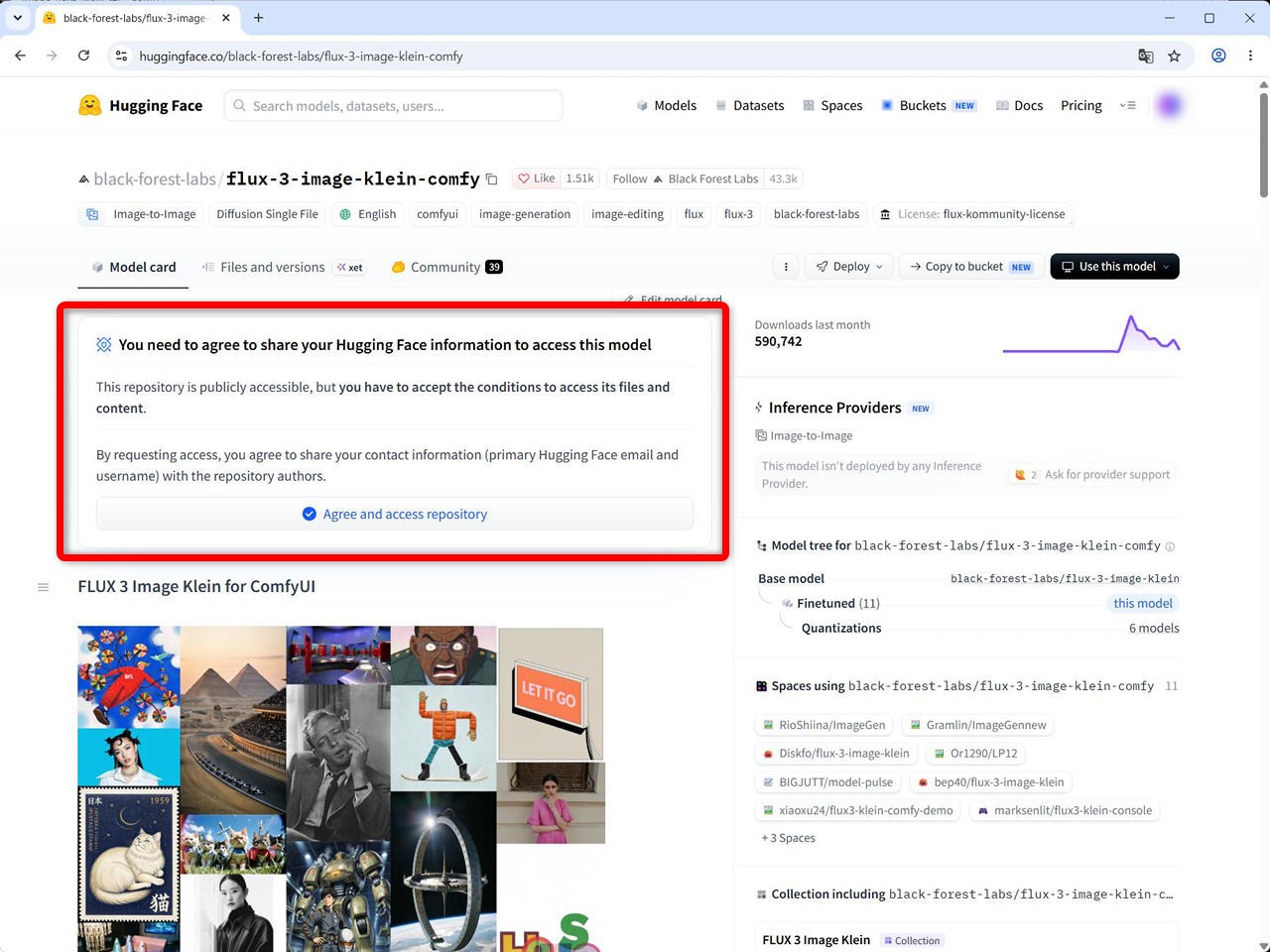
(1) Hugging Face の FLUX 3 Image Klein for ComfyUI のページを開きます。
https://huggingface.co/black-forest-labs/flux-3-image-klein-comfy
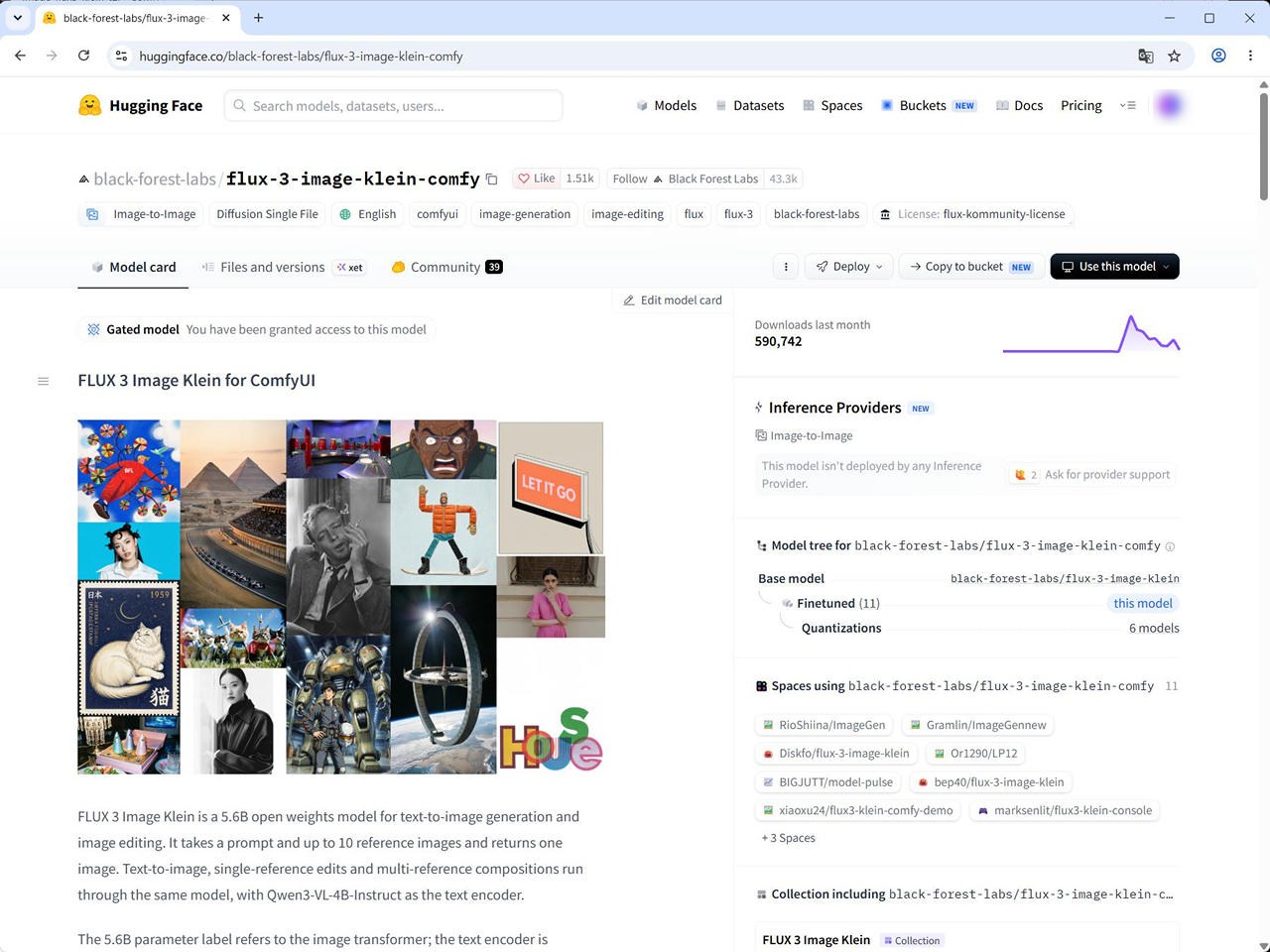
Hugging Face にログインし、ライセンス内容を確認したうえで、[Agree and access repository] をクリックします。
(2) [Files and versions] タブをクリックします。
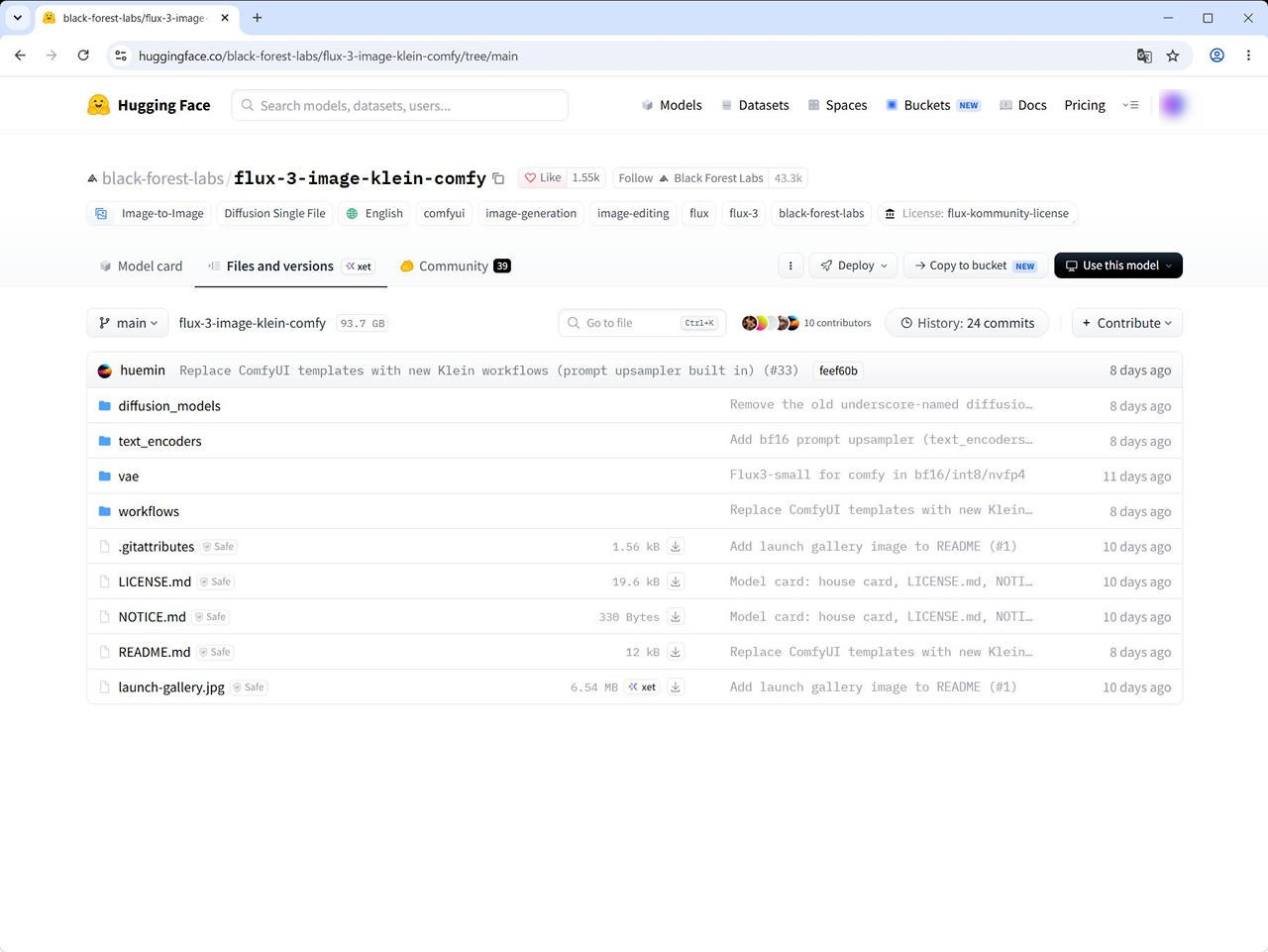
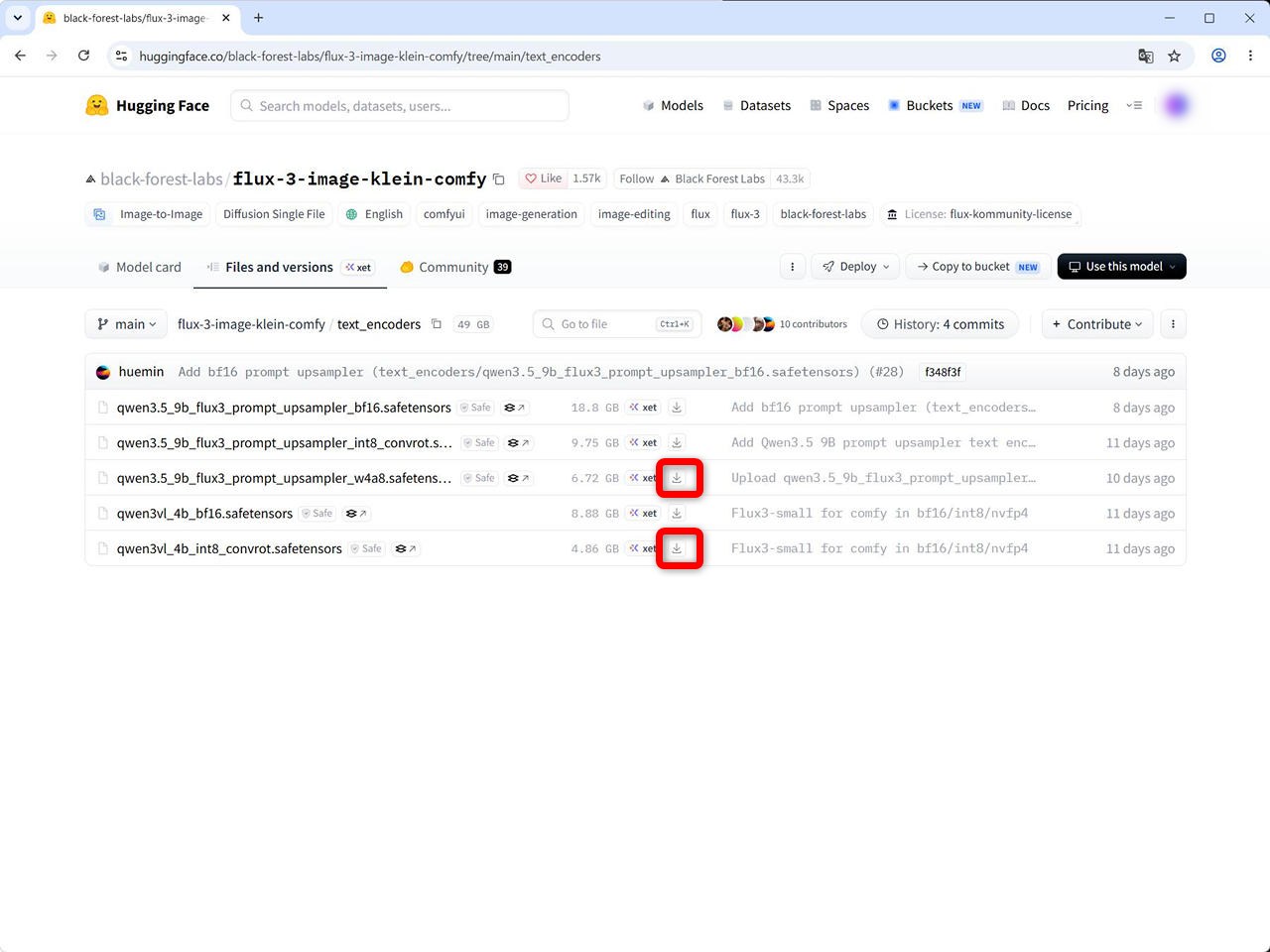
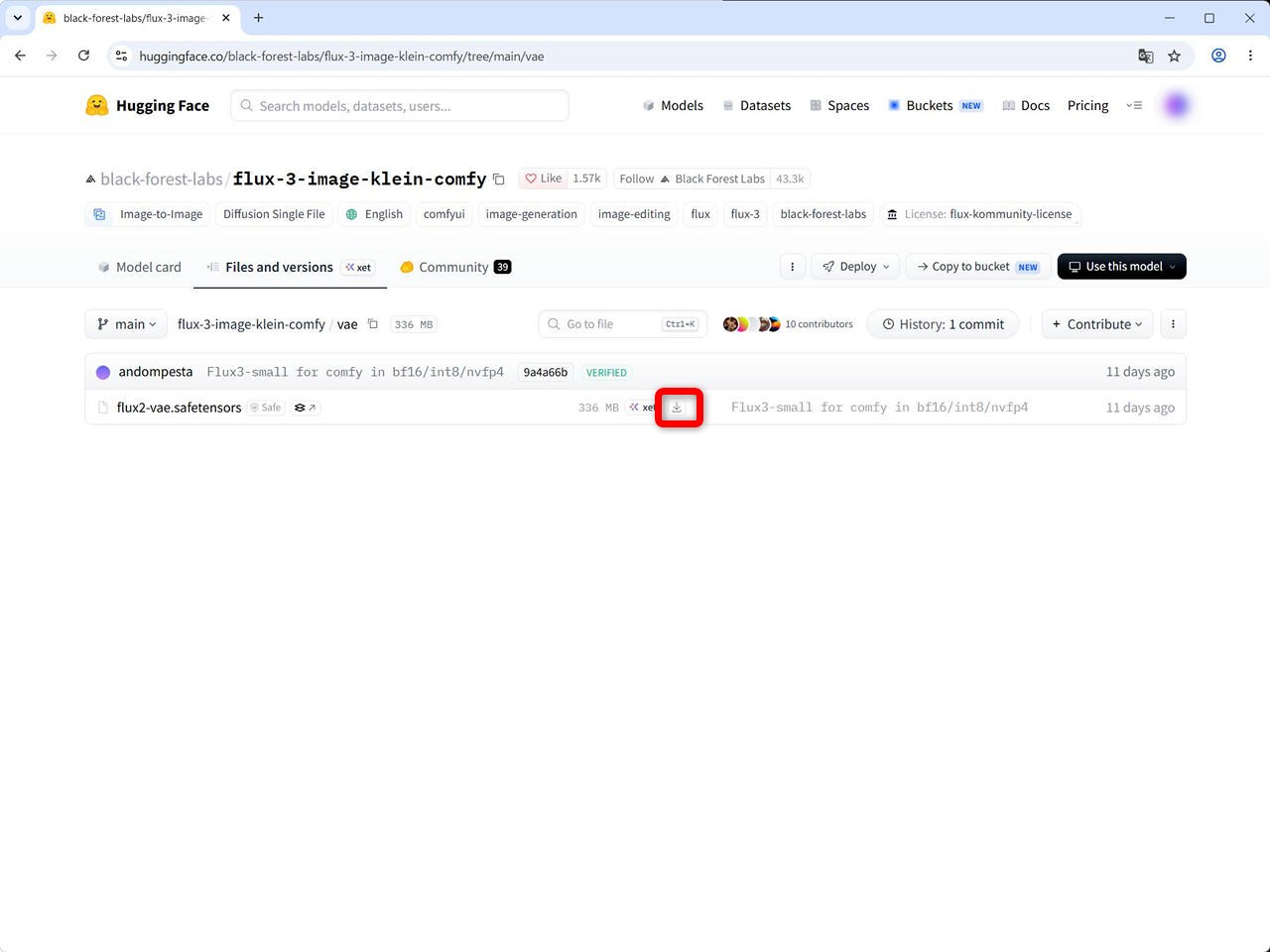
diffusion_models、text_encoders、vae の各フォルダーから、以下のファイルをダウンロードします。
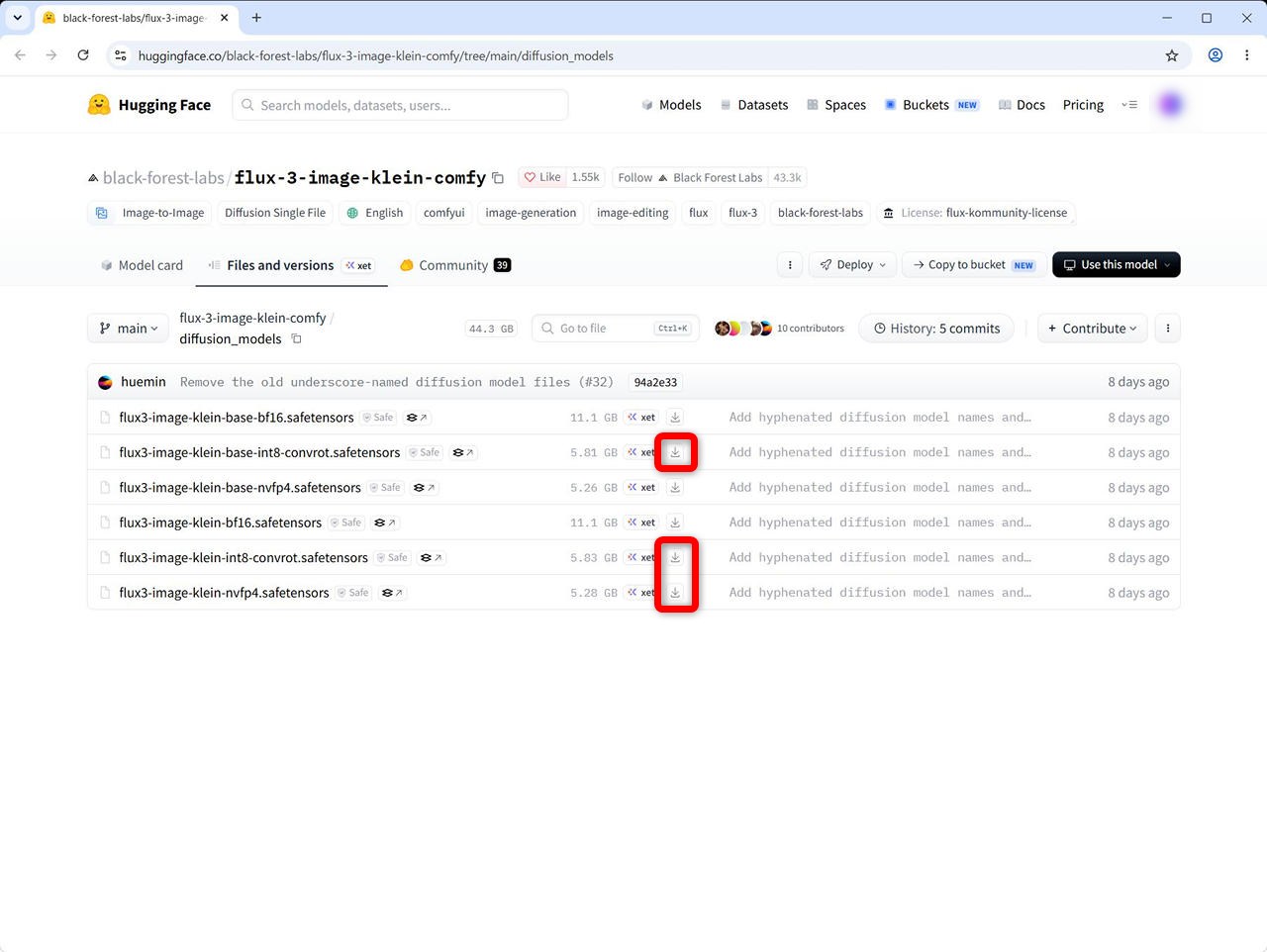
- diffusion_models
flux3-image-klein-base-int8-convrot.safetensors
flux3-image-klein-int8-convrot.safetensors
flux3-image-klein-nvfp4.safetensors - text_encoders
qwen3.5_9b_flux3_prompt_upsampler_w4a8.safetensors
qwen3vl_4b_int8_convrot.safetensors - vae
flux2-vae.safetensors
サンプル画像ファイル
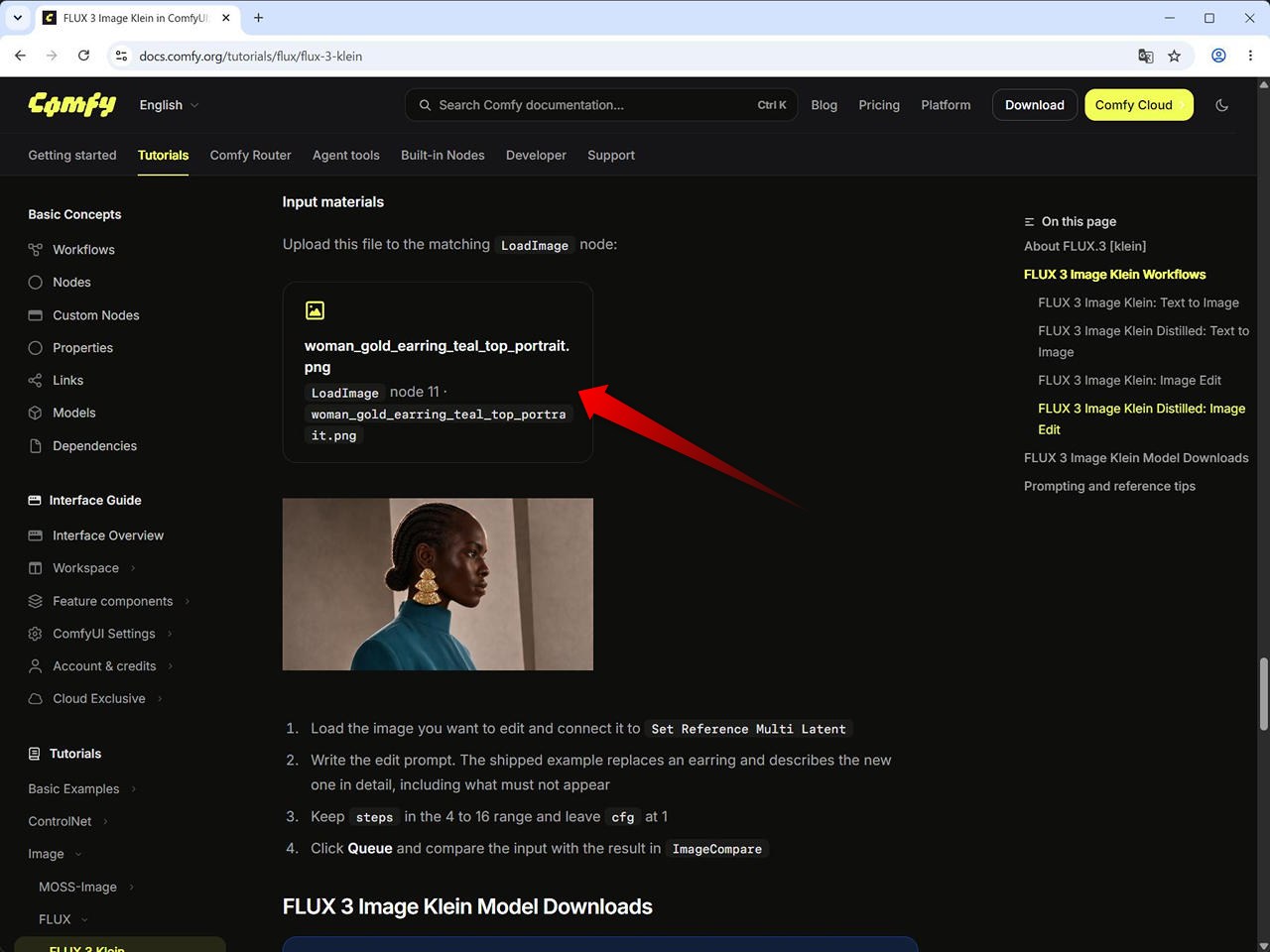
画像編集を試すため、ComfyUI docs で使用されているサンプル画像もダウンロードしておきます。
https://docs.comfy.org/tutorials/flux/flux-3-klein
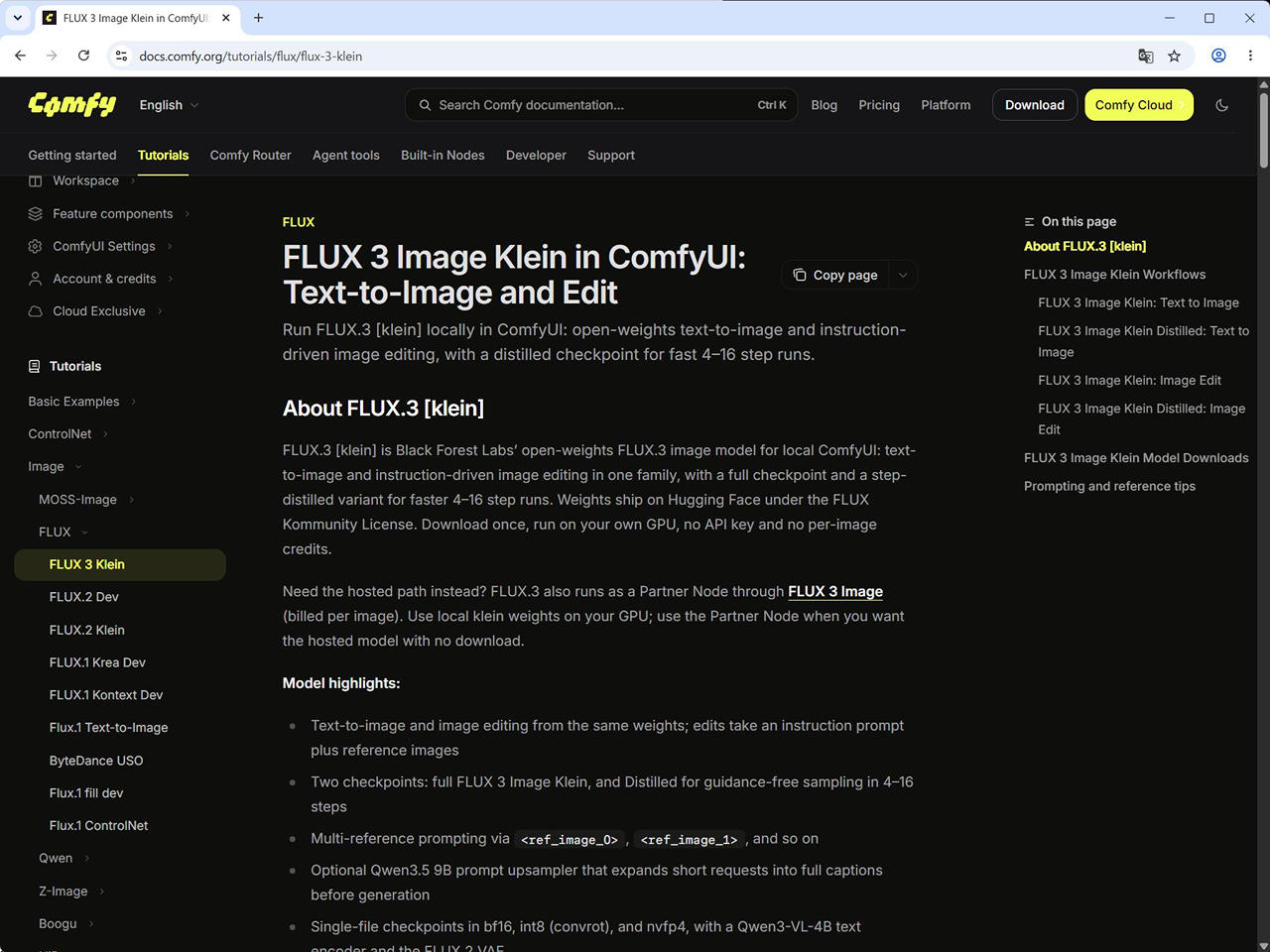
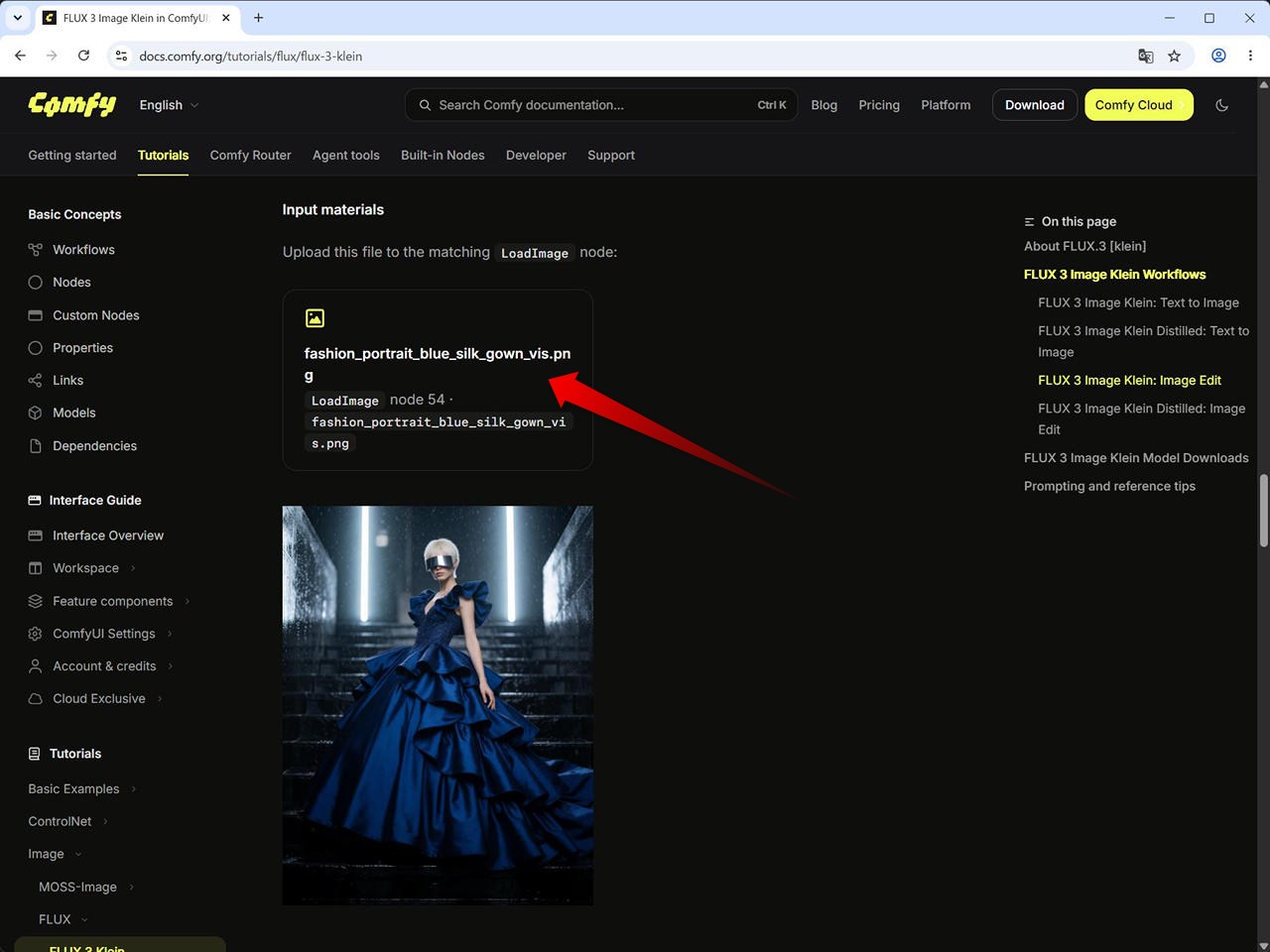
スクロールダウンして以下の2枚の画像ファイルをダウンロードします。
https://docs.comfy.org/tutorials/flux/flux-3-klein#image_flux3_klein_image_edit
fashion_portrait_blue_silk_gown_vis.png
https://docs.comfy.org/tutorials/flux/flux-3-klein#image_flux3_klein_distilled_image_edit
woman_gold_earring_teal_top_portrait.png
モデルファイルの配置
今回は、Stability Matrix で用意した ComfyUI を用いるので、Stability Matrix の共有モデルフォルダー配置します。
(1) diffusion_models
flux3-image-klein-base-int8-convrot.safetensors
flux3-image-klein-int8-convrot.safetensors
flux3-image-klein-nvfp4.safetensors
→ StabilityMatrix のインストールフォルダ\Data\Models\DiffusionModels
(2) テキストエンコーダ
qwen3.5_9b_flux3_prompt_upsampler_w4a8.safetensors
qwen3vl_4b_int8_convrot.safetensors
→ StabilityMatrix のインストールフォルダ\Data\Models\TextEncoders
(3) VAE
flux2-vae.safetensors
→ StabilityMatrix のインストールフォルダ\Data\Models\VAE
C:\StablilityMatrix にインストールしている場合は以下のような形です:
C:\STABILITYMATRIX\DATA\MODELS
├─DiffusionModels
│      flux3-image-klein-base-int8-convrot.safetensors
│      flux3-image-klein-int8-convrot.safetensors
│      flux3-image-klein-nvfp4.safetensors
├─TextEncoders
│      qwen3.5_9b_flux3_prompt_upsampler_w4a8.safetensors
│      qwen3vl_4b_int8_convrot.safetensors
└─VAE
        flux2-vae.safetensors
Nodes 2.0 の有効化
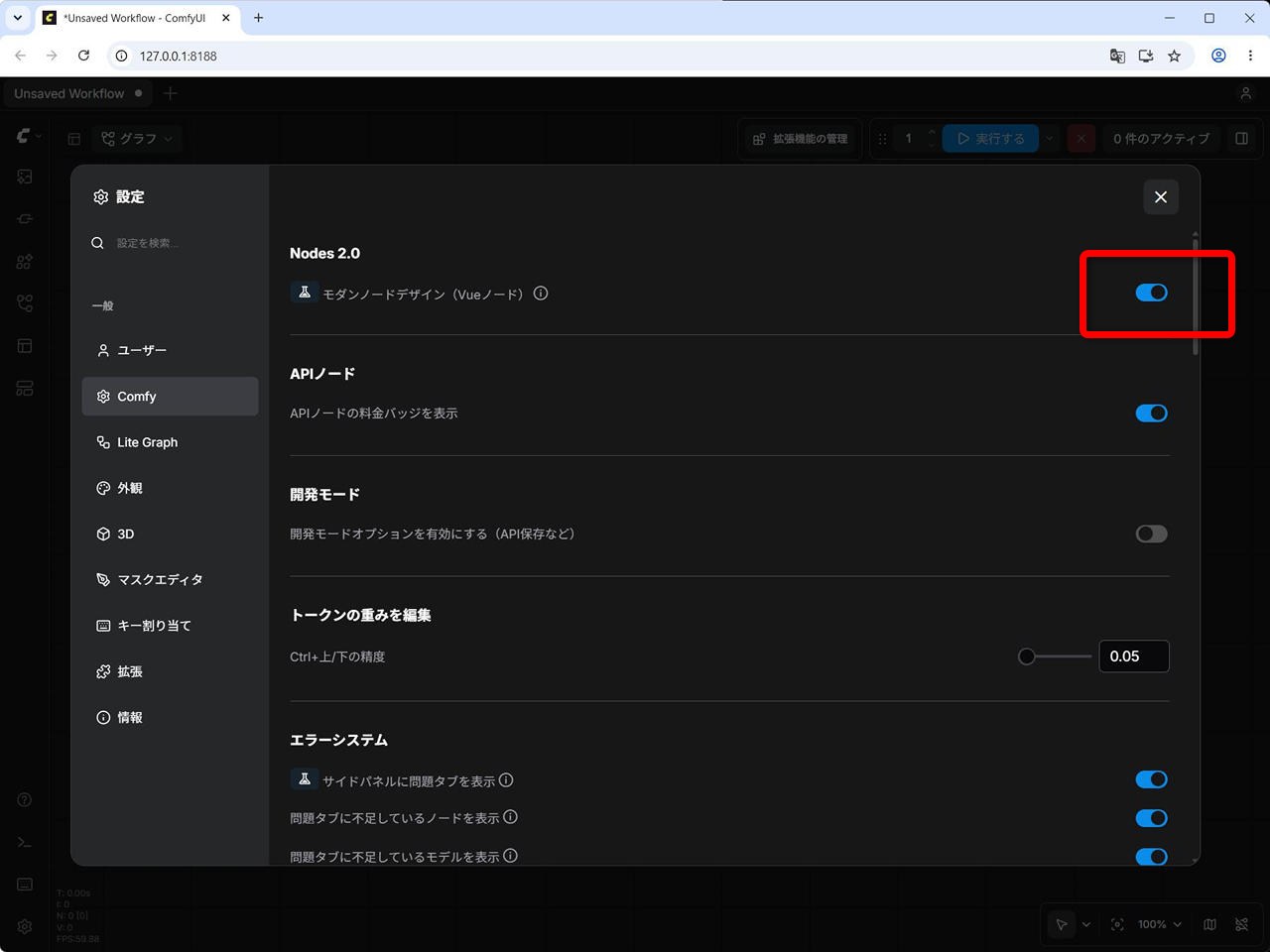
今回利用するワークフローでは、Nodes 2.0 が利用されているので有効化しておきます。
- ComfyUI 画面左下の歯車アイコンから [設定] を開きます。
- [ComfyUI] → [Nodes 2.0] を開きます。
- [モダンノードデザイン(Vue ノード)] をオンにします。
画像生成を行ってみた
実際に FLUX 3 Image Klein を使用して画像を生成してみます。
今回は、Base モデル、蒸留モデル、NVFP4 量子化モデルの順に確認します。
テキストから画像を生成 (Base モデル)
まずは Base モデルを使用して、テキストから画像を生成(Text-to-Image)してみます。
ComfyUI のテンプレートを開きます。
(1) ComfyUI – [テンプレート] をクリック
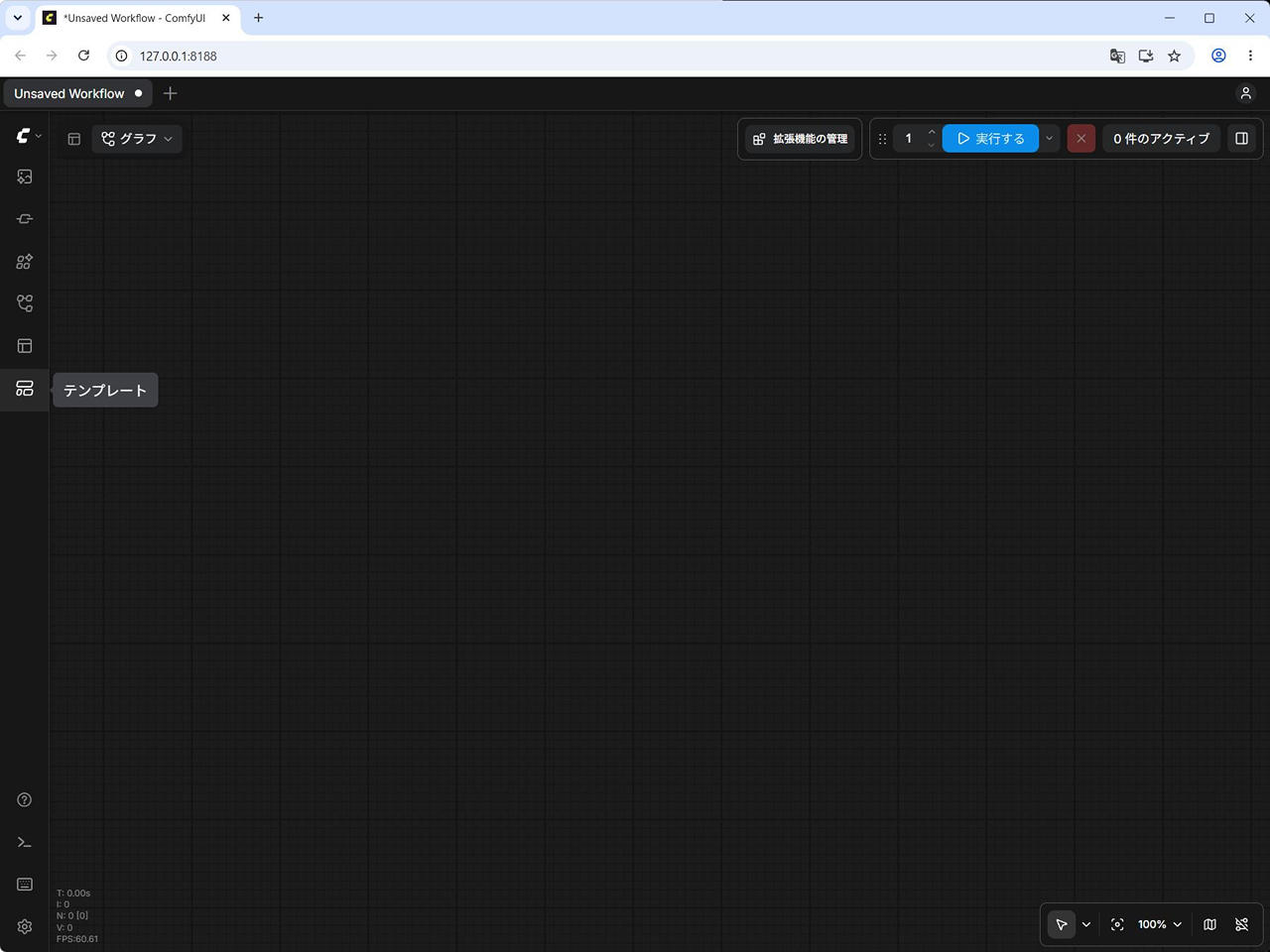
(2) “FLUX 3 Image Klein” で検索
(3) [FLUX 3 Image Klein:テキストから画像へ] をクリック
![ComfyUI - テンプレート - Flux 3 Image Klein で検索 - [FLUX 3 Image Klein:テキストから画像へ]](https://iwannacreateapps.com/wp-content/uploads/2026/11/Flux3ImageKlein_15.jpg)
最初に、テンプレートのデフォルト設定のまま生成してみます。
生成時間:約 50 秒
![[FLUX 3 Image Klein:テキストから画像へ] のテンプレート](https://iwannacreateapps.com/wp-content/uploads/2026/11/Flux3ImageKlein_16.jpg)
![[FLUX 3 Image Klein:テキストから画像へ] のテンプレート - プロンプト部分拡大](https://iwannacreateapps.com/wp-content/uploads/2026/11/Flux3ImageKlein_17.jpg)
![[FLUX 3 Image Klein:テキストから画像へ] のテンプレート - デフォルトのまま画像生成](https://iwannacreateapps.com/wp-content/uploads/2026/11/Flux3ImageKlein_18.jpg)
![[FLUX 3 Image Klein:テキストから画像へ] で生成した画像](https://iwannacreateapps.com/wp-content/uploads/2026/11/image_flux3_klein_base_t2i_00001_.png)
次に、プロンプトだけを変更してみます。
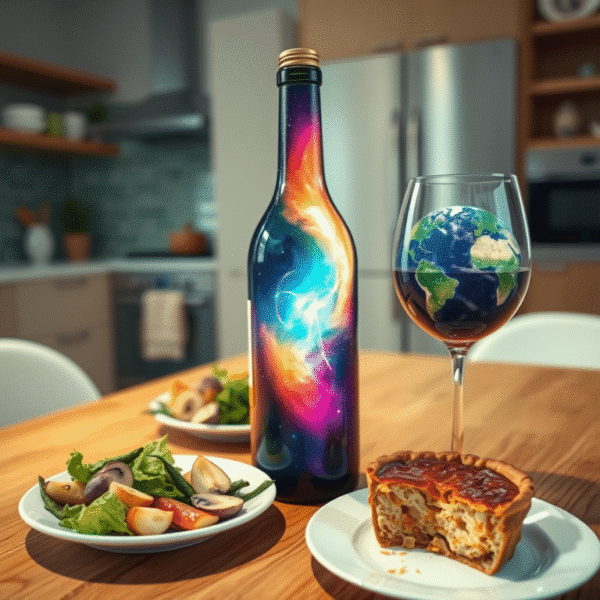
ここでは FLUX.1 [schnell] で試した や FLUX.2 [klein] をローカルで動かす (GeForce RTX 5060Ti 16GB) で試したサンプルと同じプロンプトにしてみます。
a bottle with a beautiful rainbow galaxy inside it on top of a wooden table in the middle of a modern kitchen beside a plate of vegetables and mushrooms and a wine glasse that contains a planet earth with a plate with a half eaten apple pie on it生成時間:約 42 秒
![[FLUX 3 Image Klein:テキストから画像へ] のテンプレート - プロンプトを変更](https://iwannacreateapps.com/wp-content/uploads/2026/11/Flux3ImageKlein_19.jpg)
![[FLUX 3 Image Klein:テキストから画像へ] のテンプレート - 変更したプロンプトで画像生成](https://iwannacreateapps.com/wp-content/uploads/2026/11/Flux3ImageKlein_20.jpg)
![[FLUX 3 Image Klein:テキストから画像へ] プロンプトを変更して生成した画像](https://iwannacreateapps.com/wp-content/uploads/2026/11/image_flux3_klein_base_t2i_00002_.png)
テキストから画像を生成 (蒸留モデル)
次に、蒸留モデルで画像生成を試します。
ComfyUI の [テンプレート] から「FLUX 3 Image Klein」を検索し、[FLUX 3 Image Klein Distilled:テキストから画像へ] を開きます。
![ComfyUI - テンプレート - Flux 3 Image Klein で検索 - [FLUX 3 Image Klein Distilled:テキストから画像へ]](https://iwannacreateapps.com/wp-content/uploads/2026/11/Flux3ImageKlein_13.jpg)
まずはデフォルト設定で生成します。
生成時間:約 16 秒
![[FLUX 3 Image Klein Distilled:テキストから画像へ] のテンプレート](https://iwannacreateapps.com/wp-content/uploads/2026/11/Flux3ImageKlein_21.jpg)
![[FLUX 3 Image Klein Distilled:テキストから画像へ] のテンプレート](https://iwannacreateapps.com/wp-content/uploads/2026/11/Flux3ImageKlein_22.jpg)
![[FLUX 3 Image Klein Distilled:テキストから画像へ] のテンプレート - デフォルトのまま画像生成](https://iwannacreateapps.com/wp-content/uploads/2026/11/Flux3ImageKlein_23.jpg)
![[FLUX 3 Image Klein Distilled:テキストから画像へ] で生成した画像](https://iwannacreateapps.com/wp-content/uploads/2026/11/image_flux3_klein_distilled_t2i_00001_.png)
続いて、Base モデルと同じ比較用プロンプトに変更します。
a bottle with a beautiful rainbow galaxy inside it on top of a wooden table in the middle of a modern kitchen beside a plate of vegetables and mushrooms and a wine glasse that contains a planet earth with a plate with a half eaten apple pie on it生成時間:約 14 秒
![[FLUX 3 Image Klein Distilled:テキストから画像へ] のテンプレート - プロンプトを変更](https://iwannacreateapps.com/wp-content/uploads/2026/11/Flux3ImageKlein_24.jpg)
![[FLUX 3 Image Klein Distilled:テキストから画像へ] のテンプレート - 変更したテンプレートで画像生成](https://iwannacreateapps.com/wp-content/uploads/2026/11/Flux3ImageKlein_25.jpg)
![[FLUX 3 Image Klein Distilled:テキストから画像へ] プロンプトを変更して生成した画像](https://iwannacreateapps.com/wp-content/uploads/2026/11/image_flux3_klein_distilled_t2i_00002_.png)
テキストから画像を生成 (NVFP4 の蒸留モデル)
続いて、NVFP4 量子化モデルを使用してみます。
テンプレートは、先ほどと同じ [FLUX 3 Image Klein Distilled:テキストから画像へ] を使用します。
[拡散モデルを読み込む] ノードで
unet_name を flux3-image-klein-nvfp4.safetensors に変更します。
まずはデフォルト設定で実行します。
生成時間:約 18 秒
![[FLUX 3 Image Klein Distilled:テキストから画像へ] - NVFP4 蒸留モデルに変更](https://iwannacreateapps.com/wp-content/uploads/2026/11/Flux3ImageKlein_26.jpg)
![[FLUX 3 Image Klein Distilled:テキストから画像へ] - NVFP4 蒸留モデルに変更 - もともとあるテンプレートで生成](https://iwannacreateapps.com/wp-content/uploads/2026/11/Flux3ImageKlein_27.jpg)
![[FLUX 3 Image Klein Distilled:テキストから画像へ] テンプレートで NVFP4 蒸留モデルに変更して生成した画像](https://iwannacreateapps.com/wp-content/uploads/2026/11/image_flux3_klein_distilled_t2i_00003_.png)
続いて、比較用プロンプトに変更して実行します。
生成時間:約 15 秒
![[FLUX 3 Image Klein Distilled:テキストから画像へ] - NVFP4 モデルに変更 - プロンプトを変更](https://iwannacreateapps.com/wp-content/uploads/2026/11/Flux3ImageKlein_28.jpg)
![[FLUX 3 Image Klein Distilled:テキストから画像へ] - NVFP4 モデルに変更 - 変更したプロンプトで生成](https://iwannacreateapps.com/wp-content/uploads/2026/11/Flux3ImageKlein_29.jpg)
![[FLUX 3 Image Klein Distilled:テキストから画像へ] テンプレートで NVFP4 蒸留モデル+プロンプト変更で生成した画像](https://iwannacreateapps.com/wp-content/uploads/2026/11/image_flux3_klein_distilled_t2i_00004_.png)
画像編集も試してみる
次に、FLUX 3 Image Klein の画像編集(Image-to-Image)を試します。
FLUX 3 Image Klein:画像編集 (Base モデル)
ComfyUI の [テンプレート] から、[FLUX 3 Image Klein:画像編集] を開きます。
![ComfyUI - テンプレート - Flux 3 Image Klein で検索 - [FLUX 3 Image Klein:画像編集]](https://iwannacreateapps.com/wp-content/uploads/2026/11/Flux3ImageKlein_14.jpg)
入力画像には、あらかじめダウンロードしておいたサンプル画像を指定します。
そのほかの設定は変更せず、デフォルトのまま実行します。
生成時間:約 43 秒
![[FLUX 3 Image Klein:画像編集] のテンプレート](https://iwannacreateapps.com/wp-content/uploads/2026/11/Flux3ImageKlein_30.jpg)
![[FLUX 3 Image Klein:画像編集] - 拡大](https://iwannacreateapps.com/wp-content/uploads/2026/11/Flux3ImageKlein_31.jpg)
![[FLUX 3 Image Klein:画像編集] - デフォルトのまま生成](https://iwannacreateapps.com/wp-content/uploads/2026/11/Flux3ImageKlein_32.jpg)
![[FLUX 3 Image Klein:画像編集] - 生成した画像と比較](https://iwannacreateapps.com/wp-content/uploads/2026/11/Flux3ImageKlein_33.jpg)
![[FLUX 3 Image Klein:画像編集] で生成した画像](https://iwannacreateapps.com/wp-content/uploads/2026/11/image_flux3_klein_distilled_image_edit_00001_.png)
FLUX 3 Image Klein 蒸留版:画像編集
次に、蒸留モデルを使用します。
[FLUX 3 Image Klein 蒸留版:画像編集] のテンプレートを開きます。
![ComfyUI - テンプレート - Flux 3 Image Klein で検索 - [FLUX 3 Image Klein 蒸留版:画像編集]](https://iwannacreateapps.com/wp-content/uploads/2026/11/Flux3ImageKlein_12.jpg)
サンプル画像を指定し、デフォルト設定で実行します。
生成時間:約 20 秒
![[FLUX 3 Image Klein 蒸留版:画像編集] のテンプレート](https://iwannacreateapps.com/wp-content/uploads/2026/11/Flux3ImageKlein_34.jpg)
![[FLUX 3 Image Klein 蒸留版:画像編集] のテンプレート](https://iwannacreateapps.com/wp-content/uploads/2026/11/Flux3ImageKlein_35.jpg)
![[FLUX 3 Image Klein 蒸留版:画像編集] - デフォルトで生成](https://iwannacreateapps.com/wp-content/uploads/2026/11/Flux3ImageKlein_36.jpg)
![[FLUX 3 Image Klein 蒸留版:画像編集] - 生成された画像の比較](https://iwannacreateapps.com/wp-content/uploads/2026/11/Flux3ImageKlein_37.jpg)
![[FLUX 3 Image Klein 蒸留版:画像編集] で生成した画像](https://iwannacreateapps.com/wp-content/uploads/2026/11/image_flux3_klein_distilled_image_edit_00002.png)
FLUX 3 Image Klein NVFP4 蒸留版:画像編集
最後に NVFP4 量子化モデルを試します。
[FLUX 3 Image Klein 蒸留版:画像編集] のテンプレートを開き、[拡散モデルを読み込む] ノードで使用するモデルを以下に変更します。flux3-image-klein-nvfp4.safetensors
そのまま実行します。
生成時間:約 19 秒
![[FLUX 3 Image Klein 蒸留版:画像編集] - NVFP4 モデルに変更](https://iwannacreateapps.com/wp-content/uploads/2026/11/Flux3ImageKlein_38.jpg)
![[FLUX 3 Image Klein 蒸留版:画像編集] - NVFP4 モデルで画像生成](https://iwannacreateapps.com/wp-content/uploads/2026/11/Flux3ImageKlein_39.jpg)
![[FLUX 3 Image Klein NVFP4 蒸留版:画像編集] で生成した画像](https://iwannacreateapps.com/wp-content/uploads/2026/11/image_flux3_klein_distilled_image_edit_00003.png)
Bounding Box を使用した画像編集
ここからは、FLUX 3 Image Klein の特徴の 1 つである Bounding Box を使用した画像編集を試します。
Bounding Box は、画像内の特定の領域を矩形で指定する仕組みです。
例えば、犬の胴体だけに服を追加したり、目の周辺に眼鏡を配置したりといった編集に利用できます。
今回は、先ほどの [FLUX 3 Image Klein 蒸留版:画像編集] のワークフローを使用し、画像生成モデルを NVFP4 に変更した状態で確認します。
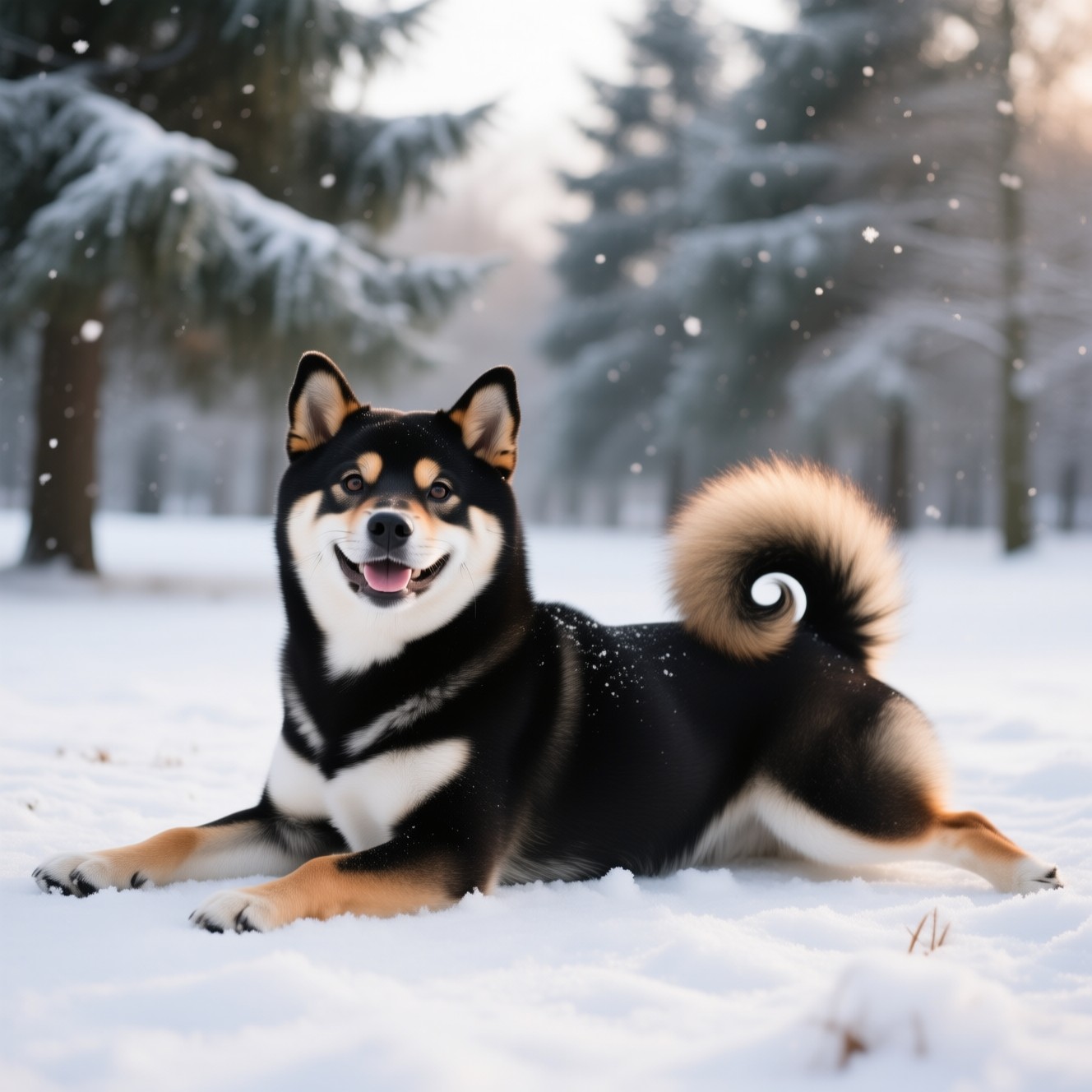
元画像
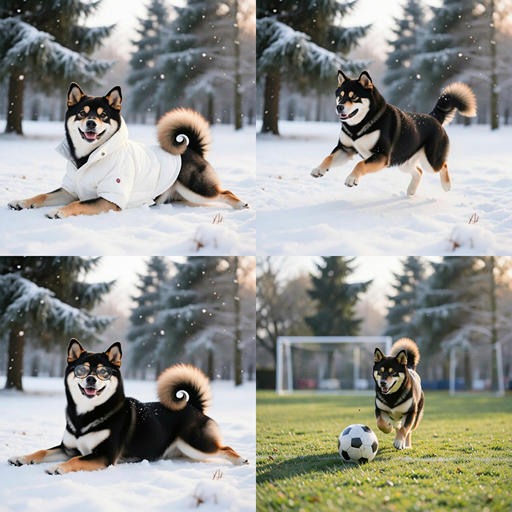
以前生成した雪の中にいる黒柴の画像を使用します。
Bounding Box の設定方法
画像編集用ワークフローの [画像を読み込む] ノードに、元画像を設定します。
続いて、[バウンディングボックスを作成](Create Bounding Boxes)ノードで編集対象の領域を指定します。
Nodes 2.0 が有効になっていれば、画像上でマウスを使って矩形の領域を作成できます。
例えば、犬の胴体に服を追加する場合は胴体部分を、眼鏡を追加する場合は目の周辺を囲むように指定します。
作成した Bounding Box は、[FLUX 3 Image レイアウトプロンプト](FLUX 3 Image Layout Prompt)ノードから参照できます。
プロンプトでは、次のような識別子を使用します。
| 識別子 | 意味 |
|---|---|
<ref_image_0> | 1 枚目の参照画像 |
<obj_1> | 1 番目の Bounding Box |
<obj_2> | 2 番目の Bounding Box |
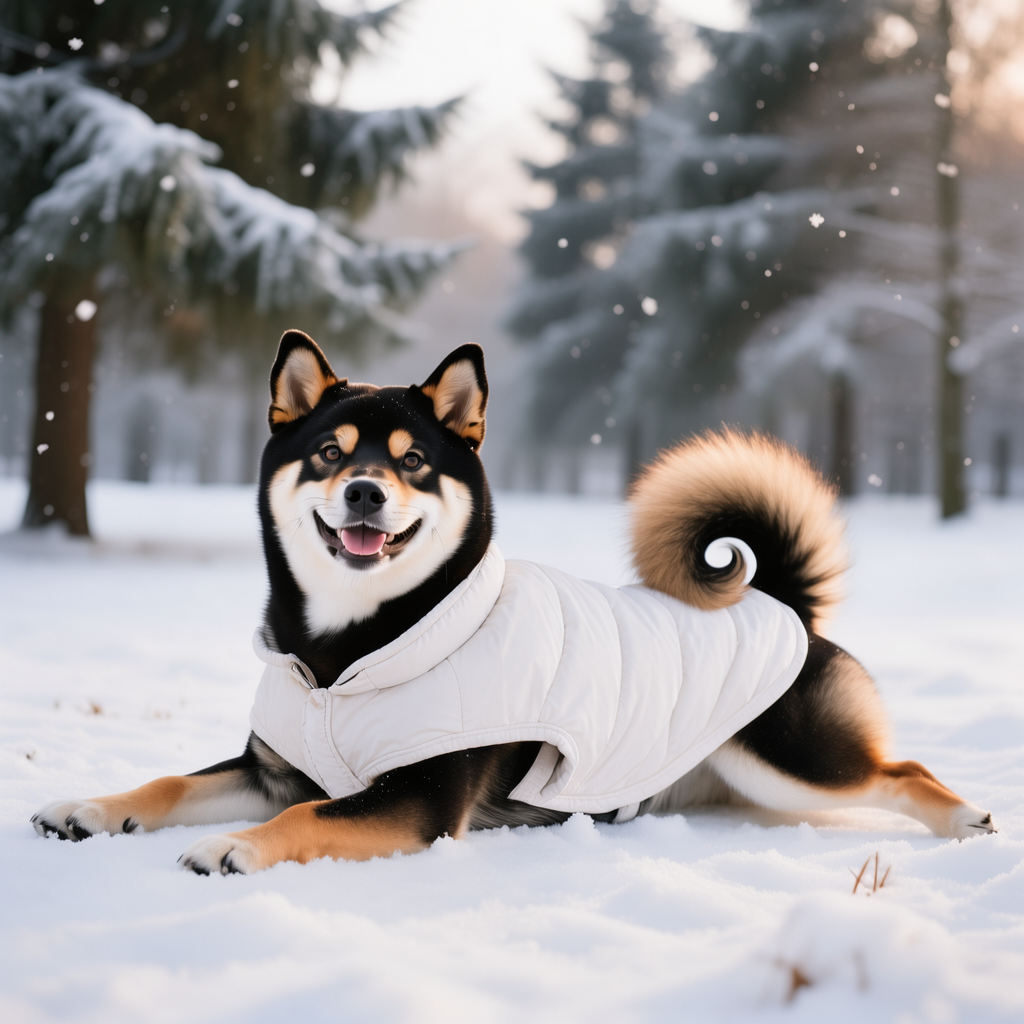
黒柴に白いダウンジャケットを着せる
最初に、黒柴の胴体部分に Bounding Box を作成します。
作成した領域を <obj_1> として参照し、白いダウンジャケットを着せるように指定します。
![[FLUX 3 Image Klein 蒸留版:画像編集] - NVFP4 モデル - 柴犬画像編集 - バウンディングボックスの設定](https://iwannacreateapps.com/wp-content/uploads/2026/11/Flux3ImageKlein_40-1024x560.jpg)
プロンプト
In <ref_image_0>, dress the black Shiba Inu with a white down jacket <obj_1>.

The jacket is a clean white padded winter jacket designed for a dog, with a soft quilted texture and a natural fitted shape around the torso. It covers the dog's body smoothly and realistically, following the pose of the dog while leaving the head, legs, and curled tail uncovered. The jacket should look warm, slightly puffy, and naturally worn on the dog's body.

Preserve the dog's face, cheerful expression, fur colors, body proportions, lying pose, snowy setting, lighting, shadows, camera angle, and overall composition. Change only the body area inside <obj_1> so that the dog appears to be wearing the white down jacket naturally.
このプロンプトでは、犬の顔や姿勢、背景などをできるだけ維持したまま、胴体部分に白いダウンジャケットを追加するように指定しています。
![[FLUX 3 Image Klein 蒸留版:画像編集] - NVFP4 モデル - 柴犬画像編集ワークフロー1 概要](https://iwannacreateapps.com/wp-content/uploads/2026/11/Flux3ImageKlein_41.jpg)
![[FLUX 3 Image Klein 蒸留版:画像編集] - NVFP4 モデル - 柴犬画像編集ワークフロー1 画像生成](https://iwannacreateapps.com/wp-content/uploads/2026/11/Flux3ImageKlein_42.jpg)
![[FLUX 3 Image Klein 蒸留版:画像編集] - NVFP4 モデル - 柴犬画像編集ワークフロー1 - 生成画像の比較](https://iwannacreateapps.com/wp-content/uploads/2026/11/Flux3ImageKlein_43.jpg)
黒柴にサングラスをかける
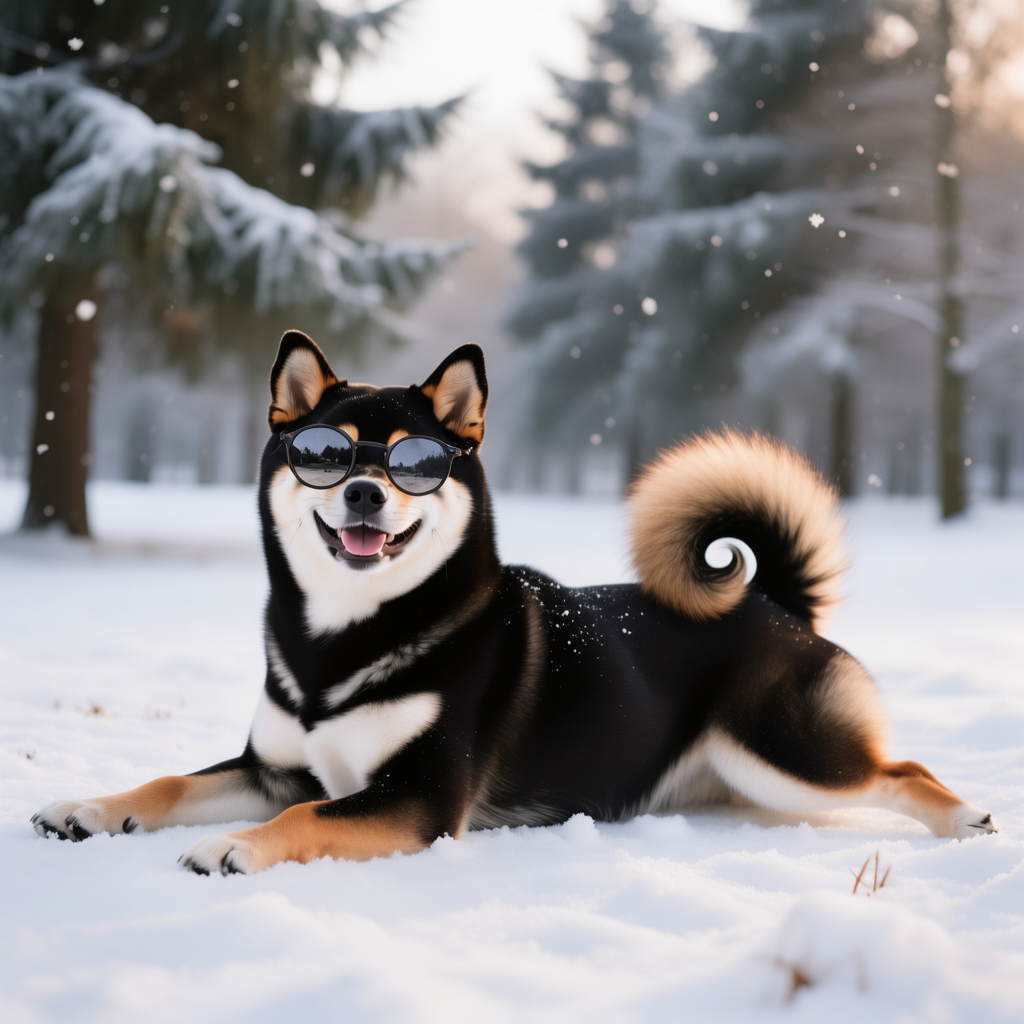
今度は黒柴の両目周辺を囲むように Bounding Box を作成します。
先ほどと同様に、編集対象の領域を <obj_1> として指定します。
![[FLUX 3 Image Klein 蒸留版:画像編集] - NVFP4 モデル - 柴犬画像を編集 - バウンディングボックスの設定2](https://iwannacreateapps.com/wp-content/uploads/2026/11/Flux3ImageKlein_44.jpg)
プロンプト
In <ref_image_0>, add round sunglasses <obj_1> to the black Shiba Inu.

The sunglasses have round lenses and thin dark frames, positioned naturally over the dog's eyes. They should fit the face realistically, resting properly across the eye area and following the angle of the dog's face. The sunglasses should look proportional to the dog's head, with subtle reflections on the lenses and natural shading.

Preserve the dog's face shape, cheerful expression, fur colors, body proportions, lying pose, snowy ground, forest background, lighting, shadows, camera angle, and overall composition. Change only the eye area marked as <obj_1> so that the dog appears to be naturally wearing the round sunglasses.
このプロンプトでは、犬の顔や表情などを維持しながら、目の周辺に丸いサングラスを追加するように指定しています。
![[FLUX 3 Image Klein 蒸留版:画像編集] - NVFP4 モデル - 柴犬画像編集ワークフロー2 概要](https://iwannacreateapps.com/wp-content/uploads/2026/11/Flux3ImageKlein_45.jpg)
![[FLUX 3 Image Klein 蒸留版:画像編集] - NVFP4 モデル - 柴犬画像編集ワークフロー2 画像生成](https://iwannacreateapps.com/wp-content/uploads/2026/11/Flux3ImageKlein_46.jpg)
![[FLUX 3 Image Klein 蒸留版:画像編集] - NVFP4 モデル - 柴犬画像編集ワークフロー2 - 生成画像の比較](https://iwannacreateapps.com/wp-content/uploads/2026/11/Flux3ImageKlein_47.jpg)
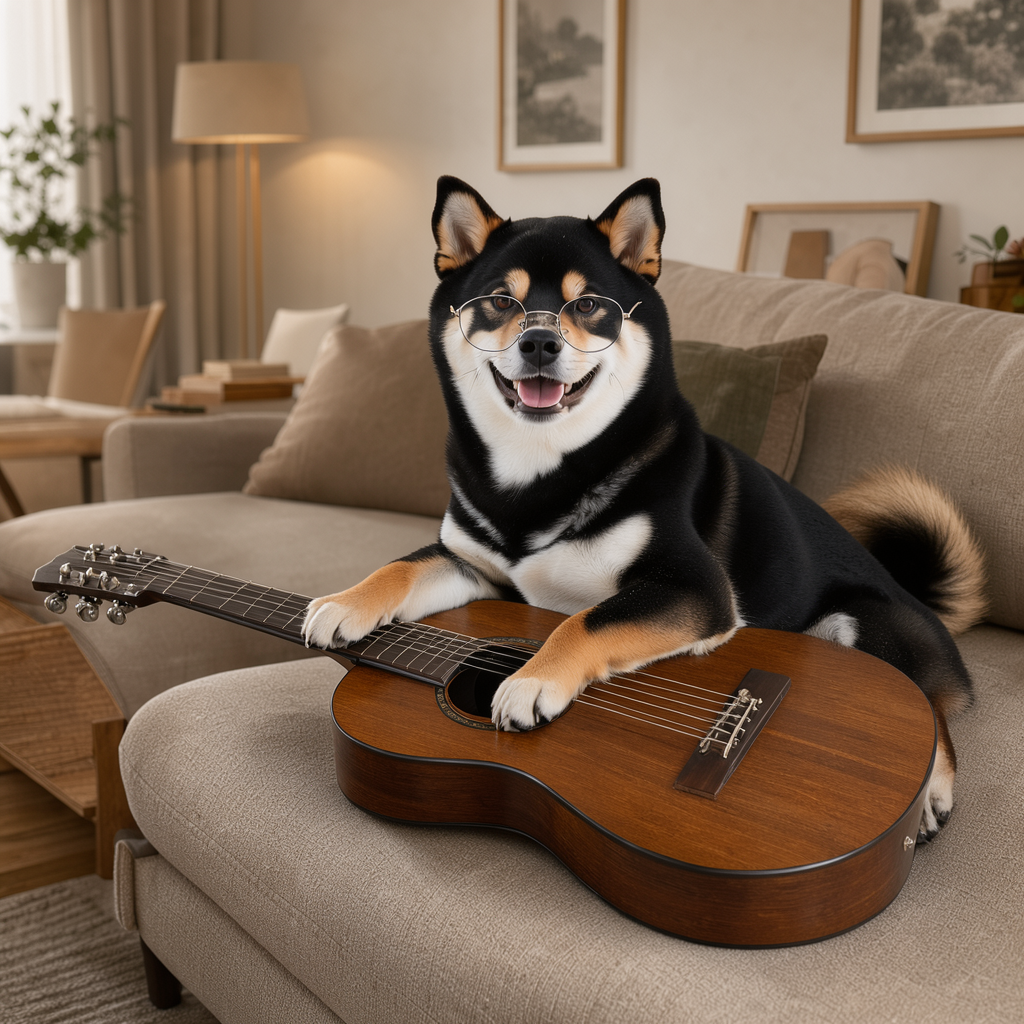
黒柴をソファーに座らせてギターを持たせる
最後に、Bounding Box を 2 つ使用し、さらに大きな変更を加えてみます。
今回は、黒柴に丸い銀縁眼鏡をかけさせ、リビングのソファーに座ってギターを抱えている姿へ変更します。
Bounding Box は以下のように設定します。
| 識別子 | 指定する領域 | 編集内容 |
|---|---|---|
<obj_1> | 黒柴の目の周辺 | 丸い銀縁眼鏡を追加 |
<obj_2> | 黒柴の胴体 | ソファーに座ってギターを抱える姿勢に変更 |
背景については、プロンプトで雪景色からリビングへの変更を指示します。
プロンプト
Using <ref_image_0> as the reference, create a photorealistic scene of the same black Shiba Inu sitting naturally on a comfortable sofa in a cozy modern living room, with an acoustic guitar resting across its lap.

Add a pair of small, perfectly circular silver-rimmed eyeglasses <obj_1> to the dog's face. The glasses have thin, delicate metallic silver frames and small, completely transparent, non-reflective lenses. Both eyes remain clearly visible. The glasses fit naturally across the dog's nose and are proportionate to its face.

Reposition the dog's body <obj_2> into a comfortable, anatomically believable seated posture. The Shiba Inu sits upright with its hindquarters resting on the sofa cushion, its back gently supported by the backrest, and its hind legs relaxed and naturally bent. Preserve its realistic canine proportions, short front legs, natural joints, black and tan fur markings, and fluffy curled tail.

A realistic wooden acoustic guitar rests diagonally across the dog's lap and torso, naturally supported by its seated position. The dog's front paws are simply resting lightly on the guitar, one near the neck and the other near the strings. The paws are relaxed and gently touching the instrument, without gripping, grasping, pressing strings, forming finger positions, or actively playing. All toes remain naturally relaxed and anatomically correct, without any human-like fingers or hands. The guitar should appear comfortably positioned without requiring the dog to hold its weight.

Replace the snowy outdoor background with a warm, cozy modern living room featuring a comfortable fabric sofa, soft cushions, a wooden coffee table, tasteful furnishings, and soft natural indoor lighting. Maintain realistic contact shadows, consistent perspective, and photographic realism.

Preserve the original Shiba Inu's recognizable facial features, cheerful expression, upright ears, eye shape, black and tan fur colors, and distinctive markings. Keep the dog looking like a real Shiba Inu rather than a human-shaped animal. Only one dog, one acoustic guitar, and one pair of glasses. No extra limbs, human hands, elongated fingers, or distorted paws.
今回は、眼鏡と胴体のそれぞれに異なる指示を与えています。
また、単にギターを持たせると擬人化しすぎて不自然だったので、犬の前足をギターに自然に添えるように指定しています。
![[FLUX 3 Image Klein 蒸留版:画像編集] - NVFP4 モデル - 柴犬画像を編集 - バウンディングボックスを2つ設定](https://iwannacreateapps.com/wp-content/uploads/2026/11/Flux3ImageKlein_48.jpg)
![[FLUX 3 Image Klein 蒸留版:画像編集] - NVFP4 モデル - 柴犬画像編集ワークフロー3概要](https://iwannacreateapps.com/wp-content/uploads/2026/11/Flux3ImageKlein_49.jpg)
![[FLUX 3 Image Klein 蒸留版:画像編集] - NVFP4 モデル - 柴犬画像編集ワークフロー3 - 画像生成](https://iwannacreateapps.com/wp-content/uploads/2026/11/Flux3ImageKlein_50.jpg)
![[FLUX 3 Image Klein 蒸留版:画像編集] - NVFP4 モデル - 柴犬画像編集ワークフロー3 - 生成画像比較](https://iwannacreateapps.com/wp-content/uploads/2026/11/Flux3ImageKlein_51.jpg)
まとめ
今回は、FLUX 3 Image Klein を GeForce RTX 5060 Ti 16GB 搭載の自作 PC で動かしてみました。
Text-to-Image と Image-to-Image の両方で、Base モデル、蒸留モデル、NVFP4 量子化モデルを試しました。
今回の環境では、Base モデルに比べて蒸留モデルの生成時間が大幅に短くなりました。
また、Bounding Box を使った画像編集では、元画像の一部分を指定して服や眼鏡を追加するだけでなく、犬の姿勢や背景を含めた変更も試すことができました。
FLUX 3 Image Klein は、テキストからの画像生成に加え、既存画像を活用したさまざまな編集をローカル環境で行えるモデルです。
特に、ComfyUI の公式テンプレートを利用すれば、複雑なワークフローをゼロから作成する必要がなく、比較的手軽に試すことができます。
参考となれば幸いです。
▼ 関連記事